
Kanyapong Family Welfare
Signing in the first time
Every member has an account already. The first time you use it, you set your own password. Three steps, about two minutes, and then you are finished.
Before you start
- Your membership number. It looks like KFW-001. Ask the secretary if you do not know yours.
- The temporary password. The welfare gives you this. It is the same one for everybody until you change it, which is why the next steps ask you to.
- 1
Open the app, or the website
On a phone, open the Kanyapong Family Welfare app. If you do not have it yet, get it here — or just use the website, which works the same.
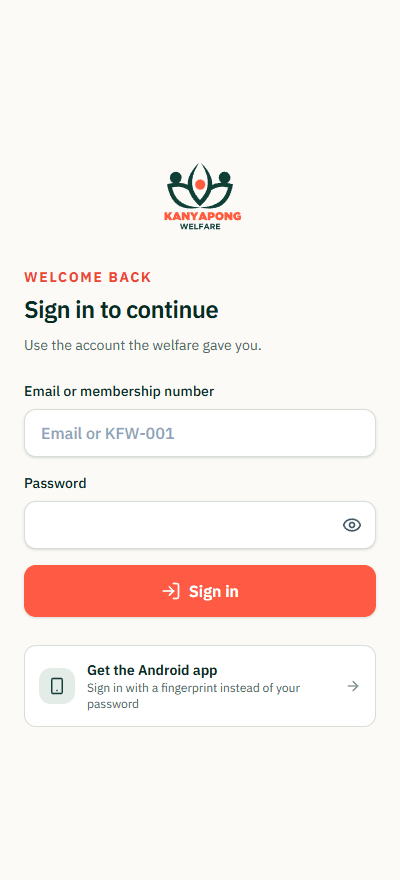
The sign-in screen. - 2
Type your number and the temporary password
In the first box, type your membership number — for example KFW-001. If the welfare has your email address, that works too.
In the second box, type the temporary password. Tap the eye on the right to check what you typed. Then press Sign in.
- 3
Choose your own password
This screen appears once. Fill in your phone number and email so the welfare can reach you, then choose a password only you know.
It needs at least 12 characters, with a capital letter, a small letter, and a number. Type it the same way in both boxes, then press Complete account setup.
Pick something you will remember. Nobody at the welfare can see your password — if you forget it, an official has to start you over from the temporary one.
That is the whole setup. Pressing that button takes you straight in.
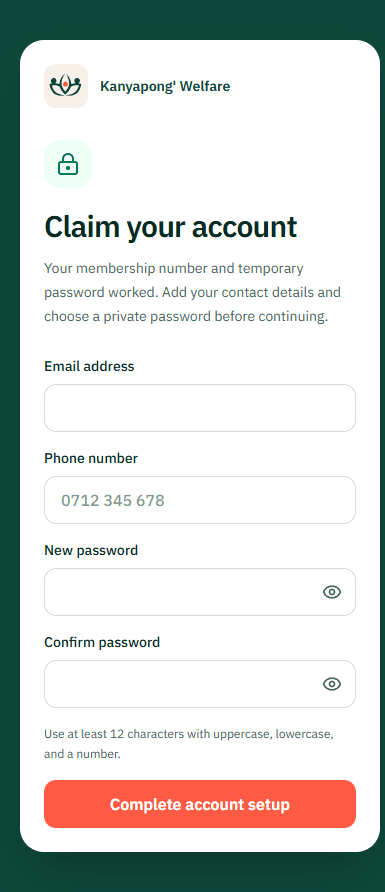
This appears once, the first time only.
You are done
You land on your own page and can see what you have given and what is still owed. There is nothing else to set up, and no second password to choose. From now on you sign in with the password you picked — the temporary one stops working.
If you want to, later
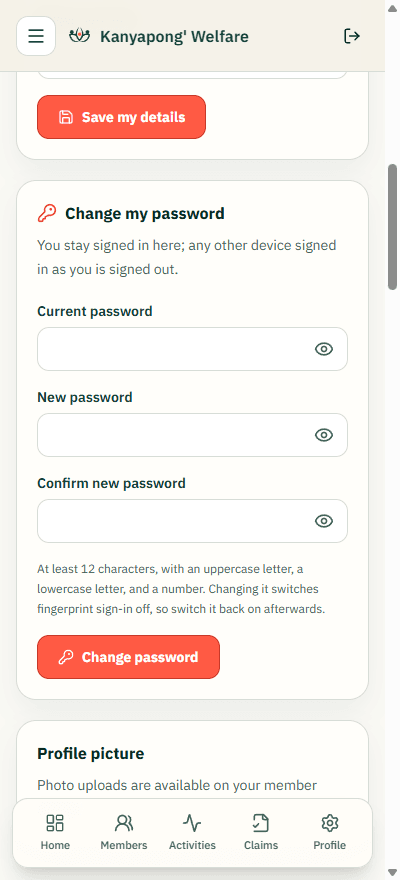
None of this is needed. Tap Profile at the bottom of the screen whenever you like, to change the password you chose or to correct your phone number.
In the app, on a phone with a fingerprint reader, the same page can turn on fingerprint sign-in. After that the app opens with your fingerprint instead of your password. Phones without a reader do not show the option.
If it does not work
- “Invalid credentials” or it refuses to sign in
- Check the membership number carefully — it is the letters KFW, a dash, then the number. Capital or small letters do not matter. If it still refuses, the welfare may hold a different number for you than you think; ask the secretary.
- You forgot the password you chose
- Nobody can look it up. Ask an official to put your account back to the temporary password, then follow this guide again from step 2.
- It says your account is locked
- That happens after several wrong passwords in a row, and it clears itself after a short wait. Try again later rather than keeping on guessing.
- Android warns you when installing the app
- That is normal: the app comes from the welfare’s own site instead of the Play Store, so Android asks you to confirm. The download page shows how to check the file is the right one.